Key takeaways
- QRing is free, with no subscription. Developer: Shenzhen Qingcheng Wireless Technology Co., Ltd.
- App Store listing needs iOS 13 or later. It rated 2.6/5 from 419 ratings when we checked in November 2026.
- Data syncs when you open the app. Open it once a day to avoid gaps and catch low battery.
- iPhone users can share data with Apple Health. Testers reported no Google Fit sharing.
- Gadgetbridge (Android, open source) lists the R07 as “highly supported” and pairs without QRing.
On this page
Where to download QRing
Download QRing from the official Apple App Store listing or search “QRing” on Google Play. Make sure the developer is Shenzhen Qingcheng Wireless Technology before installing, because copycat apps with similar names exist.
| Spec | iPhone | Android |
|---|---|---|
| Store | App Store | Google Play |
| Requirement | iOS 13 or later (store listing) | Android 5.1 or later (COLMI) |
| Price | Free | Free |
| Health sync | Apple Health | Testers reported no Google Fit sharing |
| Privacy alternative | None | Gadgetbridge (open source) |
COLMI’s product page still says iOS 8.0 or later. The App Store listing is the one your phone checks, so go with iOS 13.
Pairing your ring, step by step
Pairing takes about two minutes: charge the ring, install QRing, allow Bluetooth permissions, add the device, then set your profile. Follow the steps in order, because most failed pairings come from a flat ring or a missing Android permission.
- Charge the ring. Place the ring in its charging case for about an hour before first use so pairing doesn’t fail on a low battery.
- Install QRing. Download QRing from the App Store or Google Play. On iPhone you need iOS 13 or later.
- Turn on Bluetooth and permissions. Turn on Bluetooth, and on Android allow Nearby devices and Location when asked, since Android uses these for Bluetooth scanning.
- Add the device. Open QRing, create or skip an account as offered, tap to add a device, and pick your ring from the list when it appears. Keep the ring close to the phone.
- Set your profile. Enter your height, weight, age and step goal so distance and calorie estimates are realistic.
- Choose settings. Set the heart-rate measurement interval and turn on any optional measurements you want, keeping in mind more frequent readings use more battery.
- Connect Apple Health (iPhone). In QRing settings, allow Apple Health access for the data types you want to share.
- Wear it overnight. Wear the ring snug through the night, then open QRing in the morning to sync your first sleep record.
How do you connect a COLMI ring?
Connect a COLMI ring through the QRing app, never through your phone’s Bluetooth settings. Wake the ring by placing it on its charger, open QRing, choose to add a device, and pick the ring from the list. Pairing inside the app is what lets QRing sync your data.
The full step-by-step is above. These three details trip people up most:
- Wake it first. Rings often ship in a low-power state. A few minutes on the charger wakes them.
- Use the right app. Most COLMI rings use QRing. The R11 fidget ring may use a different app, so check the box or listing.
- Stay close. Keep the ring within a foot or two of your phone during pairing.
Why won't my COLMI ring connect?
The most common reasons are a ring paired through the phone’s Bluetooth menu instead of the app, a flat battery, missing Bluetooth permissions for QRing, or a ring still linked to another phone or app. Work through these in order; most rings connect by step three.
- Forget it in phone settings. If the ring shows in your phone’s Bluetooth list, choose Forget, then pair again from inside QRing.
- Charge it. Leave it on the charger for at least 30 minutes, then try again.
- Check permissions. On iPhone, allow Bluetooth for QRing in Settings. On Android, allow Nearby devices and Location.
- Free it from other apps. If you used Gadgetbridge or another phone before, unbind it there first.
- Restart both sides. Turn Bluetooth off and on, close QRing fully, reopen it.
- Update QRing. Old versions can fail to find newer firmware.
Still stuck after all six? See the reset steps in our how to use the COLMI smart ring guide.
The main screens, explained
QRing has a home dashboard plus detail screens for activity, heart rate, sleep and workouts. The dashboard shows today’s numbers. Tap any card to see the day’s graph and history. It’s clear, but it explains very little.
| Screen | What you see | How to read it |
|---|---|---|
| Home | Today’s steps, heart rate, sleep summary | Quick daily check |
| Activity | Steps, distance, calories by hour | Exercise calories only, not total burn |
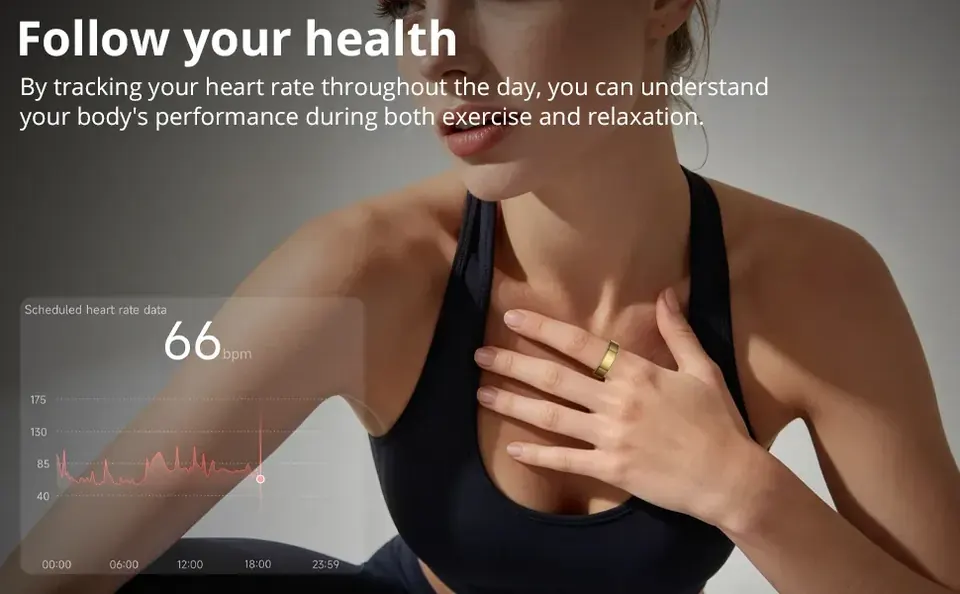
| Heart rate | Readings at your set interval, daily range | Watch resting trends over weeks |
| Sleep | Total time, light/deep/REM/awake, a score | Totals and bedtimes beat stage splits |
| Workouts | Sessions you started: time, heart rate, steps | No GPS map |
| Device | Battery, settings, find ring, firmware | Check battery here, not on the ring |
QRing users have noted the layout changed over time and that some prefer the old version. If a screen looks different from these descriptions, the app has probably updated.
Sync tips that prevent lost data
QRing syncs when you open it, so the habit that prevents most data loss is opening the app once a day. Keep Bluetooth on, keep the phone near you overnight, and stop your phone from putting QRing to sleep in the background.
- Open QRing every morning. It pulls last night’s sleep and the previous day’s readings.
- Turn off battery optimization for QRing on Android. Aggressive power savers cut its Bluetooth connection.
- Allow Background App Refresh on iPhone. Settings, General, Background App Refresh, QRing.
- Don’t pair the ring with two apps at once. Pick QRing or Gadgetbridge, not both.
- Keep the app updated. Sync bugs are often fixed in updates.
Data privacy: what to know
QRing’s App Store privacy label states the developer collects no data, but Apple notes it hasn’t verified that. Independent reviewers called the privacy policy vague about storage, and the developer is based in Shenzhen. If that worries you, limit what you share or use Gadgetbridge.
Practical steps that protect you either way:
- Skip optional account sign-up if the app lets you, or use an email you don’t use elsewhere.
- Share only what you need with Apple Health. You can switch off individual data types.
- Review app permissions. Location is needed for Bluetooth scanning on some Android versions, but nothing else should need it.
- Use Gadgetbridge on Android if you want your data to stay on your phone. It’s open source and doesn’t need the vendor’s servers.
iPhone vs Android
QRing works on both, but iPhone owners get Apple Health sharing while Android owners get the option of open-source Gadgetbridge. Pick based on whether ecosystem sync or privacy matters more to you.
On iPhone: Apple Health sharing is the big win. Your steps, heart rate and sleep can sit next to data from other apps, and you can export it later.
On Android: expect a little more setup around Bluetooth permissions and battery optimization. In return, you get Gadgetbridge, which no iPhone user can run.
Gadgetbridge for privacy-minded users
Gadgetbridge is a free, open-source Android app that works with many wearables without the vendor’s app or cloud. Its developers list the COLMI R07 as “highly supported,” and you can do the first pairing without ever installing QRing.
According to the Gadgetbridge COLMI page, the R07 shares the R02’s hardware. Supported features on that platform include synced heart rate, sleep stages, steps, and toggles for blood-oxygen and stress history. Limits: no firmware updates through Gadgetbridge, and some features depend on firmware version. It’s a great fit for tinkerers, but less polished than QRing.
Troubleshooting table
Most QRing problems come down to battery, Bluetooth permissions or the app being killed in the background. Start with the simplest fix in each row before resetting anything.
| Problem | Likely cause | Fix |
|---|---|---|
| Ring not found when pairing | Low battery or Bluetooth permission off | Charge 1 hour; allow Nearby devices/Location on Android |
| Pairs, then disconnects | Phone battery saver killing QRing | Turn off battery optimization for QRing |
| No sleep data in the morning | App hasn’t synced, or ring was loose | Open QRing near the ring; check fit |
| Sleep split into two sessions | You got up at night | Known QRing behavior; read the total |
| Steps don’t match phone | Ring counts hand movement | Compare weekly averages |
| Battery drops fast | Short heart-rate interval or extra measurements on | Lengthen the interval |
| Data missing in Apple Health | Health permissions off | QRing settings, re-allow Apple Health |
Still stuck? Our how to use the COLMI smart ring page covers resets.
Sources we used
Every fact on this page comes from these sources, checked in November 2026. Anything not from a source is labeled as our opinion.
- QRing on the Apple App Store
- Gadgetbridge: COLMI and Yawell rings support notes
- Galaxus hands-on review of the COLMI R02 (Lorenz Keller)
Frequently asked questions
What app does the COLMI ring use?
COLMI rings use QRing, made by Shenzhen Qingcheng Wireless Technology. It’s free on the App Store and Google Play.
Is the QRing app free?
Yes. QRing is free to download and there’s no membership or paywall for your data.
Does QRing sync with Apple Health?
Yes. On iPhone you can allow QRing to write data such as steps, heart rate and sleep to Apple Health in the app’s settings.
Does QRing work with Google Fit?
Independent testers reported that QRing couldn’t share data with Google Fit. Check the current version’s settings, as features change with updates.
Is my health data safe with QRing?
The App Store label says the developer collects no data, but Apple hasn’t verified it and the policy is vague about storage. Share only what you need, or use Gadgetbridge on Android.
Can I use the COLMI ring without the QRing app?
On Android, yes. Gadgetbridge supports the R07 and can pair it without QRing. On iPhone, QRing is the practical option.